
You can use the enrichment settings to configure the Fabric-enabled LogPoint instances to support enrichment. Enrichment enhances, refines, and improves the representation of the logs. You can add additional information to logs and improve their usability. You can also customize the logs and make dashboards more relevant.
Note
You cannot configure the enrichment settings in a LogPoint collector.
Go to Configure >> Settings >> System >> Enrichment Settings.
Select the LogPoint instances where you want to configure the enrichment settings.
Click Next.
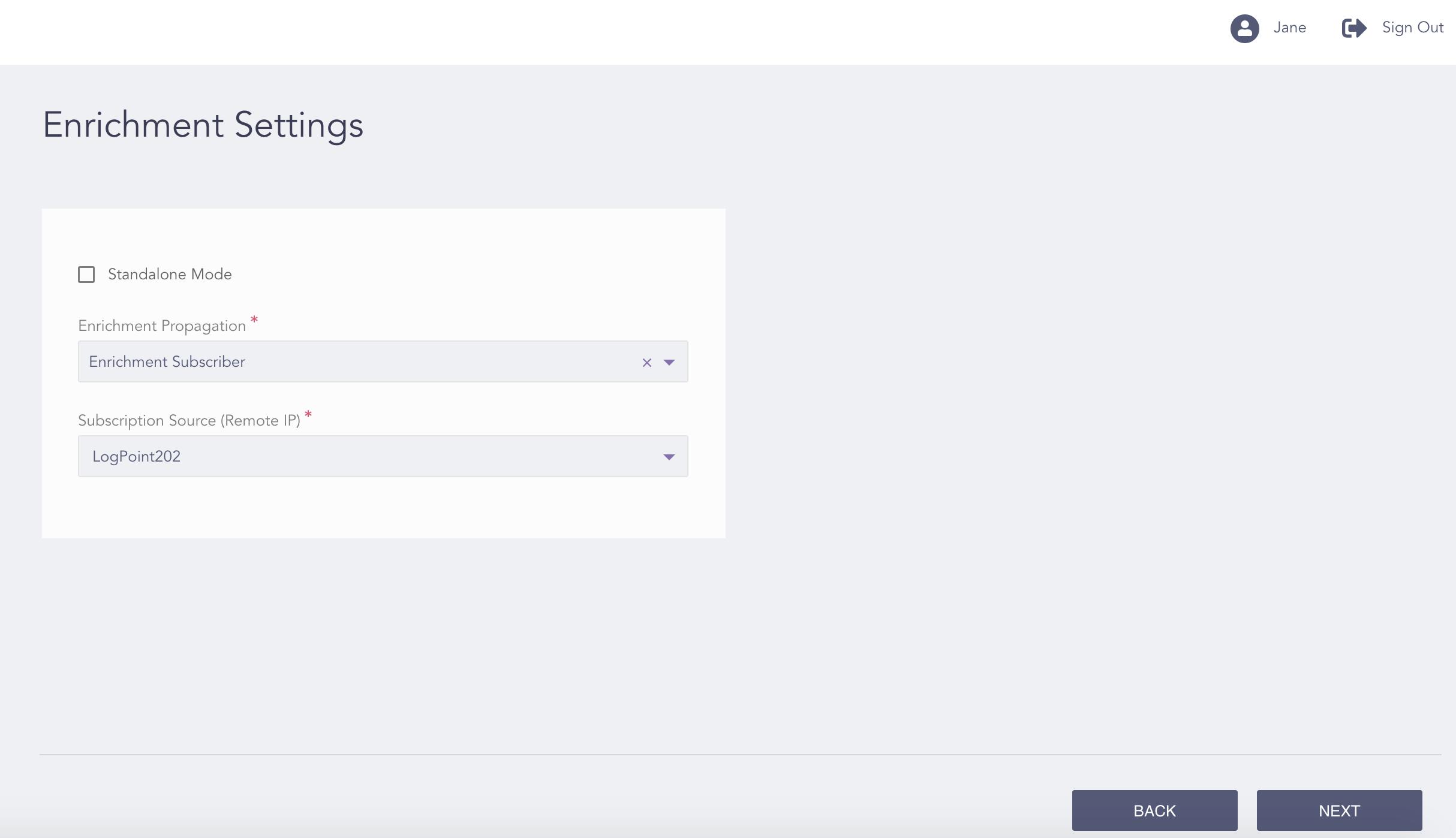
Configuring the Enrichment Settings
Select Standalone Mode to use the LogPoint in the standalone mode or deselect it to use them in the enrichment propagation mode.
Note
In the Standalone Mode, the whole enrichment process is carried out on a single machine.
In the Enrichment Propagation Mode, a single Enrichment Provider machine and multiple Enrichment Subscriber machines are used.
If you select the Enrichment Propagation Mode:
Select the Enrichment Provider option to configure the LogPoint instances as the sources (sources collect the raw data and push them into Enrichment Subscribers).
Select the Enrichment Subscriber option to configure the LogPoint instances as the clients (clients construct rules for the enrichment process).
Note
If the selected machine is an enrichment provider by default, you can see its subscribers and their current status on the Enrichment Settings page.
If you select Enrichment Subscriber, select the Subscription Source (Remote IP), i.e., the name of the Provider LogPoint.
Click Next.
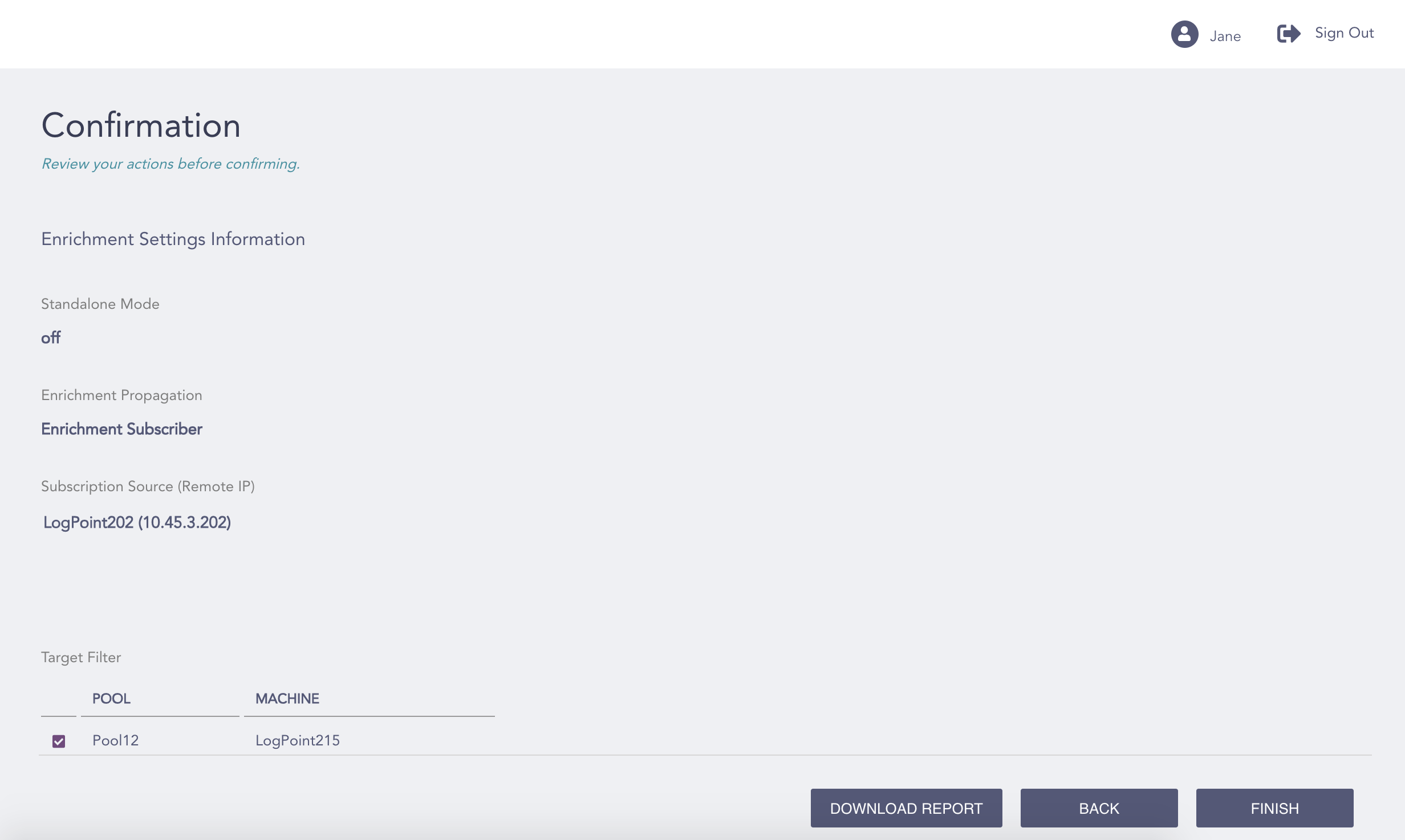
Confirming the Changes
Review your changes. You can go Back to make any changes if necessary.
Note
Click Download Report to save the summary of the task in PDF.
Click Finish.
Click OK.